
How to Create a Masked Input in Power Apps (The Easy Way)
Stop dealing with messy data. Learn the Hard Way vs. Easy Way to implement a masked input for phone numbers and IDs in Power Apps for better data quality.
Getting clean, consistently formatted data in Power Apps can be a struggle. If you need a Power Apps masked input for fields like phone numbers, postal codes, or customer IDs, the standard text input control often leads to a free-for-all, and messy data you have to clean up later.
This guide shows two ways to solve it: the hard way (building from scratch) and the easy way (using a purpose-built component). The goal is simple: what users see (e.g. (123) 456-7890) is what you display, and what you save (e.g. digits only) is what your system expects.
Why formatted data entry matters
Inconsistent data causes real problems. Reports break. Integrations fail. Users get frustrated when validation fires after they’ve already typed. Guiding users into the right format as they type reduces errors and keeps your data usable.
The Hard Way: Building a Masked Input from Scratch
Building your own input mask is a solid Power Fx exercise, but it gets complex. For a US phone number in the format (999) 999-9999, you need multiple controls and a fair amount of Power Fx to handle formatting as the user types.
Step 1: Add the controls
You can’t use a single text input if you want to inject formatting characters. A common approach is a text input plus a label that displays the formatted text.
- Add a Text Input control named
txt_PhoneNumber_Input. This is where the user types. - Add a Label control named
lbl_PhoneNumber_Formattedon top of the text input to show the formatted number. Make the input’s background transparent so it looks like one field.
Step 2: The Power Fx formatting logic
Select lbl_PhoneNumber_Formatted and set its Text property to this formula:
With( { varDigits: Concat( ForAll( Split(txt_PhoneNumber_Input.Text, ""), If(IsMatch(Result, Digit), Result) ), Value ) }, Switch( Len(varDigits), 1, Concatenate("(", Left(varDigits, 1)), 2, Concatenate("(", Left(varDigits, 2)), 3, Concatenate("(", Left(varDigits, 3), ")"), 4, Concatenate("(", Left(varDigits, 3), ") ", Mid(varDigits, 4, 1)), 5, Concatenate("(", Left(varDigits, 3), ") ", Mid(varDigits, 4, 2)), 6, Concatenate("(", Left(varDigits, 3), ") ", Mid(varDigits, 4, 3), "-"), 7, Concatenate("(", Left(varDigits, 3), ") ", Mid(varDigits, 4, 3), "-", Mid(varDigits, 7, 1)), 8, Concatenate("(", Left(varDigits, 3), ") ", Mid(varDigits, 4, 3), "-", Mid(varDigits, 7, 2)), 9, Concatenate("(", Left(varDigits, 3), ") ", Mid(varDigits, 4, 3), "-", Mid(varDigits, 7, 3)), 10, Concatenate("(", Left(varDigits, 3), ") ", Mid(varDigits, 4, 3), "-", Mid(varDigits, 7, 4)), Concatenate("(", Left(varDigits, 3), ") ", Mid(varDigits, 4, 3), "-", Mid(varDigits, 7, 4)) ))The formula keeps only digits and uses a Switch to add parentheses, space, and hyphen as the user types. You still need logic on the text input to limit length and handle backspace, which adds more complexity.
Where it gets brittle
- Paste: If someone pastes
123-456-7890or1234567890, your formula must handle it. Usually fine if you strip non-digits first, but you have to test. - Backspace and cursor: Replacing the whole text on every keystroke can make the cursor jump to the end. Some makers use separate inputs for area code, exchange, and subscriber, then you have three controls and more formulas to maintain.
- Different formats: International numbers, extensions, or SSN/date masks mean new rules and length checks for each format.
- Model-driven apps: You’re writing and maintaining a JavaScript web resource and wiring it to the
OnChangeof each field, or building your own PCF from scratch.
This approach works for Canvas Apps and teaches you a lot about Power Fx. The cost is maintenance: every edge case and new mask is on you.
The Easy Way: Using a Pre-Built PCF Component
A dedicated Power Apps masked input component is faster, more robust, and easier to maintain. The Masked Input from the Power Components Kit (PCK) is built for this: you add the component and set one property.
What you get
- Real-time behavior: The component can prevent invalid characters (e.g. letters in a phone field) as the user types.
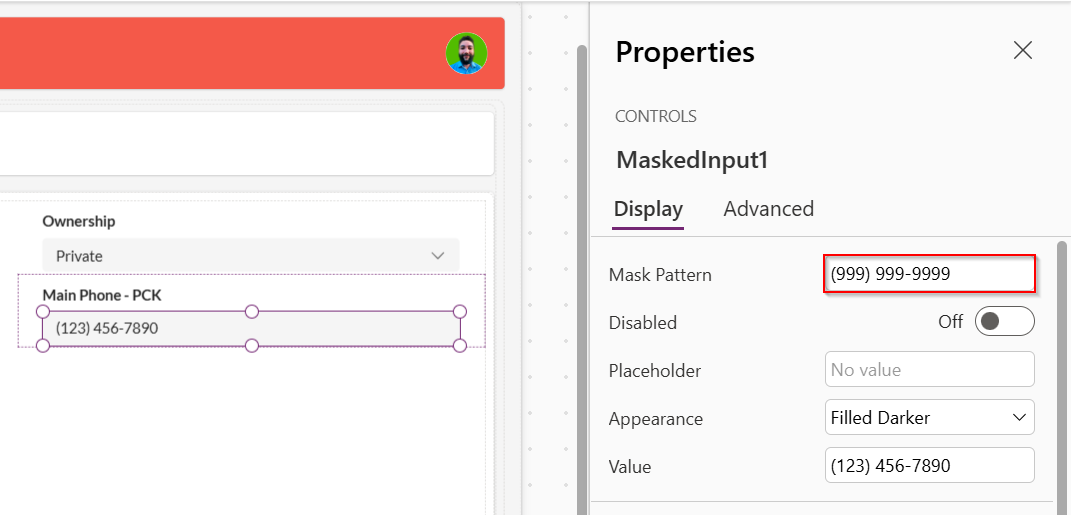
- One property: Set the Mask property to your format. No formatting formulas.
- Any format: Use it for phone numbers, postal codes, credit cards, serial numbers, and more.
- Two outputs: Use Value for the formatted text (what the user sees, e.g.
(123) 456-7890) and RawValue for digits-only, what you save to your database or use in logic. No stripping or concatenation in Power Fx. - Consistent UX: The mask guides the user and reduces errors.
Configuration is straightforward: set the mask in the properties pane and bind your data.
When this makes sense
- You need one or more masked fields (phone, SSN, tax ID, date) and don’t want to own the formatting logic.
- You’re on Canvas or Model-Driven and prefer not to write or maintain a custom PCF or web resource.
- You want consistent behavior on paste, backspace, and different lengths without debugging formulas.
The component is a one-time purchase ($49 at the time of writing) with 12 months of updates; you get lifetime use of the component.
Stop Building from Scratch
You can spend hours building and debugging a custom input mask for every app, or solve it in about 30 seconds with a dedicated component. If you’re building professional Power Apps and care about Power Apps data validation on input, a purpose-built masked input is worth a look.
Get the Masked Input component from the Power Components Kit and focus on what matters.